Home

Back

Contents

Next

Modes of Operation

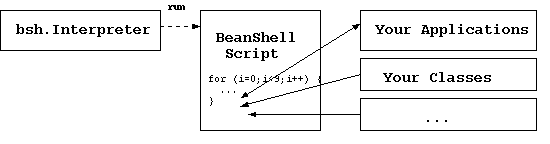
There are currently five basic modes of operation for running BeanShell: We'll outline these in this and the coming sections.

BeanShell is also integrated into a number of other tools and development environments including the Emacs JDE and the NetBeans/Forte for Java IDE. Please see the web site for articles and information about using BeanShell within these third party tools.

Standalone


You can use BeanShell to run scripts from the command line or enter statements interactively by starting the bsh.Interpreter class. (See "Quickstart" for instructions on adding BeanShell to your classpath.)

 java bsh.Interpreter [ filename ] [ arg ] [ ... ]  // Run a script file

There are a few options which can be passed to the Interpreter using Java system properties:

Remote

Removed in BeanShell 3.0:
The bsh.Remote launcher, along with the servlet and remote server engines it talked to, has been removed. This section describes 2.x behavior only; it does not apply to BeanShell 3.x. See "Remote Server Mode" and "BshServlet and Servlet Mode Scripting".

In BeanShell 2.x and earlier, the bsh.Remote launcher was the equivalent of bsh.Interpreter, but ran the specified file in a remote BeanShell engine - either a servlet mode BeanShell engine (BshServlet) or a native server mode remote BeanShell instance.

Interactive Use

One of the most popular uses for BeanShell is, of course, as a "shell" for interactive experimentation and debugging. BeanShell can be run in a GUI desktop mode that offers a number conveniences like command line history, cut & paste, and tools for interactive use such as a simple classbrowser. We'll talk about the GUI in "The BeanShell Desktop" later.

Tip:
The BeanShell GUI is comprised mostly of a set of BeanShell scripts supplied in the JAR file and launched by the BeanShell desktop() command.

However BeanShell can also be run interactively in plain text on the command line.

 java bsh.Interpreter   // Run interactively on the command line

This is useful for quick "one liners"; however it does not offer creature comforts such as command line history and editing. We should note that some shells, such as the Windows environment, do command line history and editing automatically - providing these features for BeanShell.

Tip:
You can exit from an interactive shell by typing Control-D.

The return statement is ignored in interactive mode (it does not exit the shell).

The .bshrc Init File

When run interactively, BeanShell looks for a startup file called ".bshrc" in the user's home directory. If the file is found it is sourced into the interactive shell. You can use this to perform setup for your interactive use. For example, to add additional default imports or to toggle on the show() command if you prefer that.

The location of the .bshrc file is determined by the Java system property "user.home", which has different locations under different operating systems. The following table lists common locations:

.bshrc File Location:

Unix $HOME/.bshrc
Win95/98 single user C:\Windows\.bshrc
Win98 Multiuser C:\Windows\Profiles\<username>\.bshrc
NT/2K C:\Winnt\Profiles\<username>\.bshrc

Home

Back

Contents

Next